Gaming Without a Dedicated GPU
You don't necessarily need a dedicated graphics card to enjoy PC games.
Many desktop processors and laptops include integrated graphics capable of handling everyday display tasks and, depending on the hardware, a selection of games.
That matters if you're using a work laptop, an affordable desktop, a compact computer, or a system that wasn't originally purchased for gaming.
However, there's a difference between a game launching successfully and delivering an enjoyable experience.
Some games may run comfortably with modest settings. Others might require significant compromises, while certain titles may not support your hardware at all.
Understanding those differences helps you avoid buying games that your computer cannot reasonably handle.
The Quick Answer
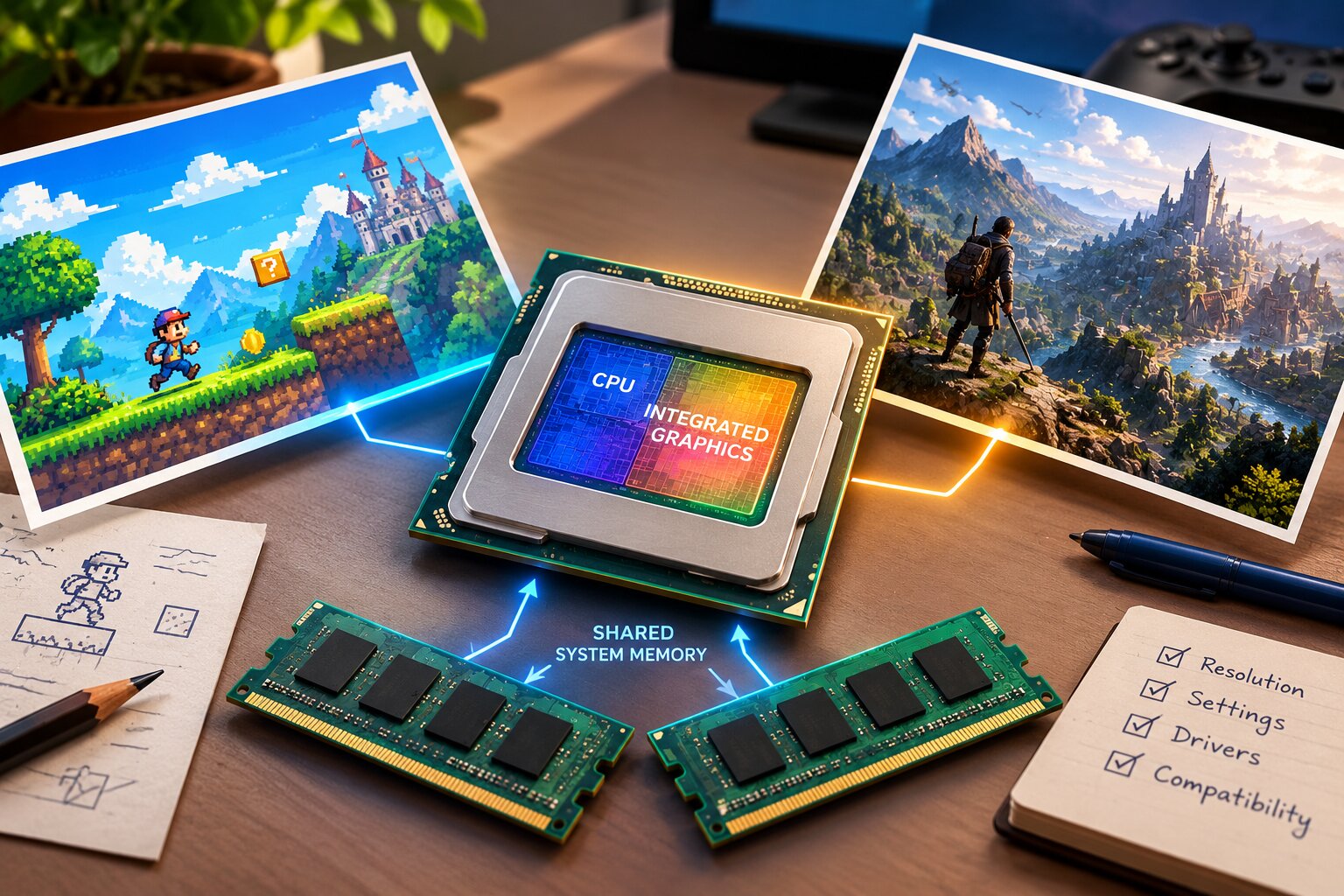
Integrated graphics can be a reasonable option for PC gaming, especially when you're selective about the games you install.
The most promising candidates often include less demanding 2D games, selected indie releases, older PC titles, and games designed with broad hardware compatibility in mind.
More demanding 3D games require closer examination.
The key is not whether a game looks simple. It's whether your particular graphics hardware, processor, memory configuration, and software meet the game's actual requirements.
A useful approach is to begin with games that publish modest requirements and offer a compatible demo.
Don't purchase a demanding title based solely on someone else's reported results from a different computer.
What Integrated Graphics Actually Means
A dedicated graphics card is a separate graphics processor, generally with its own video memory.
Integrated graphics are built into a processor or processor package and are designed to handle display and graphics workloads without requiring a separate graphics card.
Many integrated graphics solutions share system memory with the processor.
Shared Memory and Why It Matters
With shared-memory graphics, your operating system, applications, and graphics workload draw from the computer's available memory resources.
This creates a practical limitation.
If your computer has relatively little RAM, running a game while keeping numerous browser tabs and background applications open can increase resource pressure.
Memory bandwidth can also influence integrated graphics performance because the graphics processor depends on access to system memory.
Intel identifies dual-channel memory as one factor that can help maximize performance on supported Intel graphics configurations.
However, installing more RAM or changing memory configuration does not guarantee a specific improvement in every game.
Not All Integrated Graphics Are Equal
The phrase "integrated graphics" covers many generations and product families.
Examples include:
- Older Intel HD Graphics solutions.
- Intel UHD Graphics.
- Intel Iris Xe Graphics.
- Integrated Intel Arc-branded graphics in supported processor families.
- AMD Radeon integrated graphics included with selected Ryzen processors.
These should not be treated as equivalent products.
Even within the same general graphics family, available processor power, system cooling, memory design, drivers, and manufacturer settings may change what a computer can reasonably accomplish.
A modern integrated GPU may be substantially more capable than an older one, but the exact model still matters.
Which Types of PC Games Are Worth Trying?
Rather than promising specific frame rates, it helps to evaluate games by the workloads they create.
| Game category | General outlook | What to examine |
|---|---|---|
| Simple 2D platformers | Often promising | Effects, resolution, minimum GPU |
| Pixel-art adventures | Frequently worth investigating | Engine and graphics requirements |
| Turn-based strategy | Varies considerably | Map size, simulation complexity |
| Older 3D games | Depends on title and compatibility | Driver support and graphics APIs |
| Modern lightweight indie 3D | Potentially suitable | Resolution, effects, GPU requirements |
| Large modern 3D releases | Often demanding | VRAM expectations, GPU features, minimum specifications |
| Competitive multiplayer | Highly variable | Performance consistency and latency |
These are discovery categories, not compatibility guarantees.
2D Platformers and Puzzle Games
A carefully optimized 2D platformer can be a good candidate for modest hardware.
Consider games such as Celeste and Stardew Valley as titles whose published requirements are worth investigating when building an affordable gaming library.
Their visual approaches differ from demanding, photorealistic releases.
However, their appearance alone isn't proof that they will run properly on your specific computer.
Check the current store requirements, operating-system compatibility, and available graphics features.
Turn-Based and Tactical Games
Turn-based games can be appealing when you don't need consistently high frame rates for rapid aiming or reaction-based movement.
That doesn't mean they're automatically lightweight.
Large maps, numerous simulated units, complex effects, and substantial background calculations can still place heavy demands on a computer.
Evaluate both processor and graphics requirements.
Older PC Games
Older PC titles are another category worth exploring.
Many were originally designed for hardware that is less powerful than modern computers.
However, compatibility with current operating systems, display drivers, and graphics interfaces can introduce separate problems.
An older game may need an officially supported compatibility setting or updated release.
Avoid assuming that age guarantees trouble-free operation.
Modern 3D Games
Modern three-dimensional releases cover an enormous performance range.
A small indie game with simple environments might have reasonable requirements, while another visually modest title could depend on expensive lighting, complex simulation, or newer graphics APIs.
Large, visually ambitious games are particularly risky purchases when you're relying on older integrated graphics.
Study the published minimum GPU requirements before spending money.
If the game specifies a dedicated graphics processor your system does not match, do not assume integrated graphics are an acceptable substitute.
Why Two Integrated Graphics PCs Can Perform Differently
Suppose two people own laptops advertised with the same graphics family.
One reports smooth gameplay in a particular title. The other encounters stuttering.
Both accounts could be accurate.
Memory Configuration
System RAM capacity and bandwidth may affect performance, particularly when the GPU shares memory with the CPU.
Supported dual-channel configurations can improve available memory bandwidth.
Processor and Power Limits
Some laptops prioritize battery life or temperature control.
A processor may have less power available for sustained gaming than the same or similar hardware in another computer.
Cooling
Heat can reduce sustained performance.
Thin laptops and compact systems may respond differently under extended loads.
Drivers and Operating System
Graphics-driver support matters for compatibility, stability, and access to certain graphics features.
Intel publishes compatibility information for APIs such as DirectX, OpenGL, and Vulkan across supported graphics families.
A graphics API requirement is not interchangeable with a general statement that your hardware supports modern games.
Game Updates
Games can change after release.
New effects, engine changes, additional content, or optimization updates can affect system requirements and performance.
For that reason, older benchmark videos should be treated as historical evidence rather than guaranteed current results.
How to Check Whether a Game Might Run
Use this process before making a purchase.
Step 1: Identify Your Graphics Processor
On Windows, you can check your hardware through Device Manager.
- Open the Start menu.
- Search for Device Manager.
- Expand Display adapters.
- Record the exact graphics processor name.
You can also inspect processor and memory information under Settings > System > About.
If Windows displays a generic graphics adapter rather than the expected hardware model, investigate whether the appropriate driver is installed.
Step 2: Check the Game's Official Requirements
Visit the developer's official website or an authorized storefront.
Compare:
- Operating system.
- Processor.
- RAM.
- Graphics processor.
- DirectX or other required graphics APIs.
- Storage space.
- Additional launcher or online requirements.
Treat minimum specifications as a compatibility starting point, not a performance promise.
Step 3: Look for Relevant Evidence
Search for reliable demonstrations or technical discussions involving your exact graphics model.
Check whether they disclose the CPU, memory, game version, resolution, and graphics settings.
A video that only says "Intel graphics" is not particularly helpful.
Likewise, one reported frame-rate average does not reveal whether a game suffers from frequent stuttering.
Step 4: Try a Demo When Available
A compatible official demo can offer valuable practical information.
Pay attention to:
- Whether the game starts normally.
- Responsiveness of the controls.
- Noticeable stuttering.
- Visual corruption or crashes.
- Performance during busier scenes.
- Temperature or fan behavior.
A demo still may not represent every environment or workload in the final release.
Step 5: Evaluate the Purchase Risk
Before buying, review the storefront's applicable refund policy.
Do not assume every store allows a refund simply because a title performs poorly on unsupported hardware.
Practical Settings Worth Adjusting
If a game launches but runs poorly, the following changes may help.
Reduce Display Resolution
Rendering fewer pixels can reduce graphics workload.
For example, moving from 1920 × 1080 to 1280 × 720 substantially reduces the number of pixels processed per frame.
That does not guarantee a proportional frame-rate increase.
Lower Demanding Graphics Options
Settings worth examining include:
- Shadow quality.
- Ambient occlusion.
- Volumetric effects.
- Reflections.
- Antialiasing.
- Post-processing.
- Draw distance.
The usefulness of each change depends on the game and what is limiting performance.
Use Supported Upscaling
Some games provide resolution scaling or compatible upscaling techniques.
These may reduce rendering workload while attempting to preserve image quality.
Do not assume every upscaling technology works on every integrated GPU.
Update Drivers Carefully
Use the computer manufacturer's supported driver package or the graphics vendor's official resources, as appropriate for your system.
Be cautious about generic third-party driver-download websites.
Reduce Background Workloads
Close unnecessary applications if memory or processor usage is causing resource pressure.
However, don't expect closing a browser to compensate for a graphics processor that lacks a required feature.
Favor Consistency Over Maximum FPS
A stable experience at moderate settings may be preferable to frequently fluctuating performance.
Frame pacing, responsiveness, and stuttering all affect how a game feels.
When Integrated Graphics Is Not Enough
Sometimes the best decision is to choose a different game rather than force unsuitable hardware to run a demanding one.
That may be the case when:
- Your GPU lacks a mandatory graphics feature.
- The minimum requirements specify substantially stronger hardware.
- Performance remains poor at reasonable minimum settings.
- Cooling or power limitations make sustained play unreliable.
- Upgrading the computer would cost more than the intended gaming experience justifies.
Cloud gaming may be an alternative for supported games where service availability, internet quality, subscriptions, and game licensing make sense.
But it is not a universal substitute. Availability and input responsiveness depend on the service and connection.
Another practical option is to build a library around games that match your current computer.
Building a Better Gaming Library
Instead of organizing your wishlist entirely by popularity, divide games into three groups.
Likely candidates: Games with published requirements comfortably within your known hardware capabilities.
Needs verification: Games whose requirements are close to your configuration or lack clear integrated-GPU support information.
Avoid for now: Games that require unsupported graphics features or hardware substantially beyond your system.
This simple classification gives you a useful way to prioritize demos and purchases.
It also prevents an expensive hardware upgrade from becoming the default answer to every new release.
For more approachable game discovery, explore Games for Everyday Hardware and the site's Pixel Art & Retro-Inspired section.
Final Checklist
Before buying a game for an integrated graphics PC:
- Identify your exact processor and GPU.
- Check available system RAM.
- Compare official minimum requirements.
- Verify required graphics API support.
- Look for evidence involving similar hardware.
- Try an official demo if one exists.
- Review refund terms before purchasing.
- Be willing to choose a different game.
Integrated graphics gaming is about matching the right experience to the computer you already own.
A carefully selected game can be more enjoyable than a demanding release that constantly struggles to run.
The goal is not to prove that every PC can play everything. It's to discover worthwhile games without assuming expensive hardware is a prerequisite.
Frequently Asked Questions
Can integrated graphics run modern PC games?
Some can, but the result depends on the exact graphics processor, game requirements, settings, drivers, and system configuration. Modern does not automatically mean incompatible.
Is Intel UHD Graphics the same as Intel Iris Xe?
No. They represent different graphics product families, and performance capabilities vary between models and generations.
Does more RAM improve integrated graphics performance?
It can help when memory capacity or bandwidth is a limiting factor. However, extra RAM cannot overcome missing GPU features or guarantee a particular frame rate.
Are pixel-art games always lightweight?
No. Art style alone does not establish performance requirements. Complex simulation, visual effects, or engine behavior can make some pixel-art games demanding.
Should I upgrade my computer just to play indie games?
Not necessarily. First identify the games you want and compare their actual requirements against your existing system. A hardware upgrade makes more sense when it addresses a confirmed limitation affecting games you genuinely intend to play.
Useful Hardware References
- Intel Graphics Support - Graphics identification, drivers, and troubleshooting.
- AMD Drivers and Support - Official Radeon and Ryzen graphics driver resources.
- Steam Performance Troubleshooting - General guidance on game requirements and performance.
By: Alex Brown
Last updated: October 18, 2026
Hardware and Performance Note
This is a research-based buying and compatibility guide, not a report of original benchmark testing. Reported game performance depends on the complete hardware and software configuration. Specific FPS results or compatibility guarantees have intentionally not been assigned to untested systems.
0 comments:
Post a Comment