Free Demos, Smarter Choices
Steam Next Fest returns October 19–26, 2026, bringing another opportunity to discover upcoming PC games through free playable demos.
For players using an older desktop, an affordable laptop, a compact mini PC, or an everyday gaming computer, the event offers something particularly useful: a chance to explore new releases without committing to a purchase.
But finding an interesting game and finding one your PC can comfortably run are two different things.
A beautiful pixel-art adventure might demand surprisingly capable hardware. Meanwhile, a modest-looking strategy game could place considerable pressure on your processor.
The best approach is to combine genre discovery with a little hardware research and a realistic performance test.
Here's how to spend more time playing promising demos and less time downloading games your computer may struggle to handle.
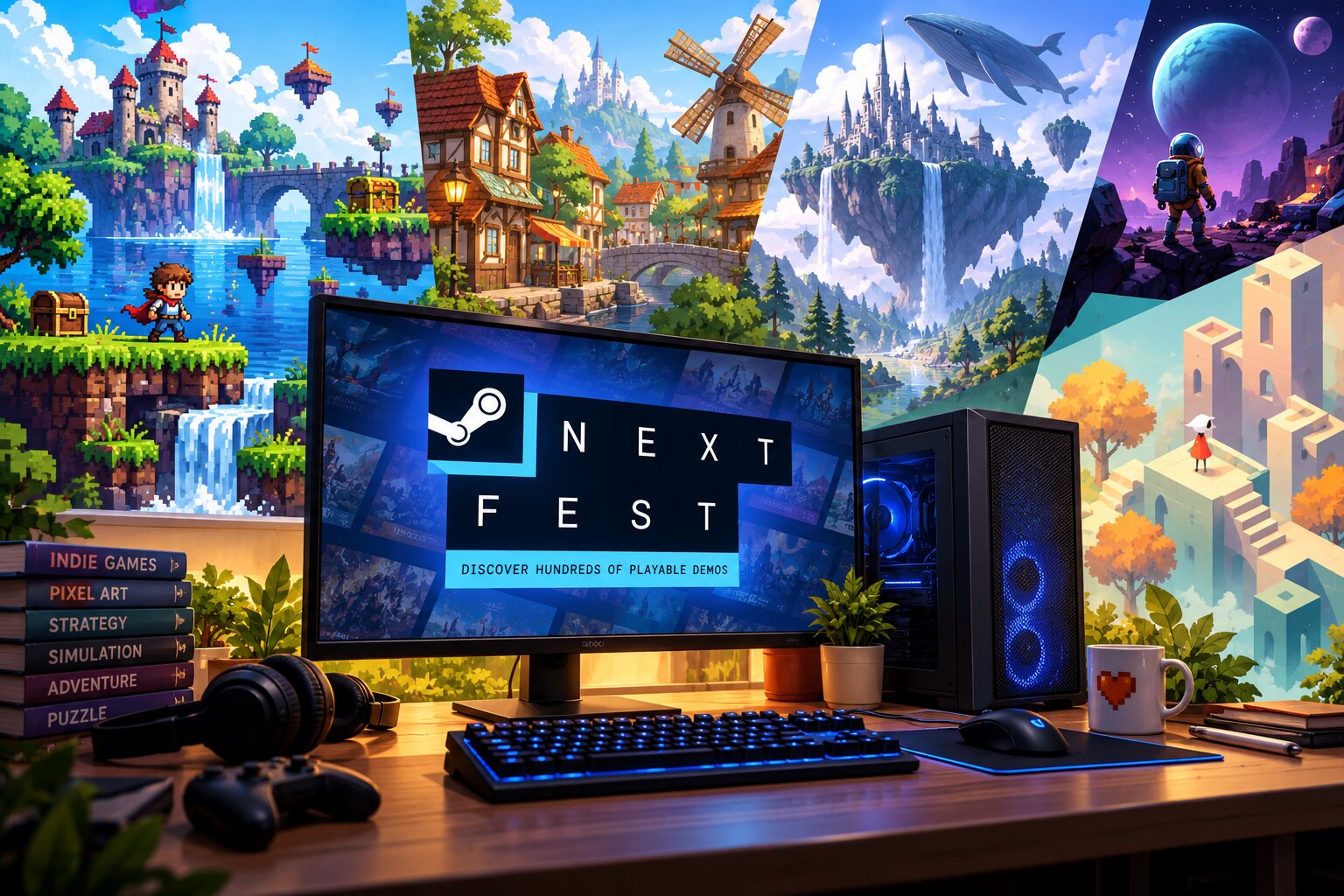
Steam Next Fest at a Glance
| Detail | October 2026 Event |
|---|---|
| Event | Steam Next Fest |
| Starts | October 19, 2026 |
| Ends | October 26, 2026 |
| Start/end time | 10:00 AM Pacific |
| Price | Free playable demos |
| Main focus | Upcoming PC games |
| Where | Steam |
| Recommended preparation | Check your PC specifications |
Steam Next Fest is primarily a discovery event, not a traditional discount sale.
Participating developers provide playable demonstrations of upcoming games so players can explore their ideas before release. Some developers also offer livestreams and opportunities to engage with their communities.
The important distinction: A free demo lets you evaluate part of a game, but it does not guarantee that its final release will perform identically.
Development builds can change, optimization may improve, and system requirements may be revised.
Who Benefits Most?
Steam Next Fest is particularly valuable for:
- Players looking for affordable indie games.
- Anyone using integrated graphics.
- Owners of older gaming desktops or laptops.
- Fans of 2D, pixel-art, and retro-inspired games.
- Players interested in demos before spending money.
- People searching for something different from major AAA releases.
A well-chosen demo can reveal more about a game's suitability than its trailer alone.
Why Minimum Requirements Matter
Before downloading anything, understand the difference between a game's minimum and recommended requirements.
Minimum requirements describe the hardware configuration the developer identifies as the entry point for running the game.
They do not necessarily guarantee smooth frame rates, high settings, or consistent performance.
Recommended requirements generally indicate a more capable configuration intended for a better experience, although developers do not always specify exactly what performance to expect.
Pay attention to five components.
| Component | What to Check |
|---|---|
| Processor (CPU) | Model, generation, and approximate performance |
| Graphics (GPU) | Dedicated versus integrated graphics and supported features |
| Memory (RAM) | Installed capacity and free memory |
| Storage | Required disk space, preferably on an SSD when recommended |
| Operating system | Supported Windows version or other listed platform |
Integrated Graphics Deserve Extra Attention
Many everyday computers use graphics built into the processor rather than a separate graphics card.
This does not automatically make them unsuitable for gaming.
Some indie games, lightweight 2D releases, and carefully optimized 3D titles may work well on integrated graphics.
However, graphics architectures differ considerably.
A modern integrated GPU can outperform some older dedicated cards, while an older integrated GPU might lack features needed by a recent game.
Do not assume that all Intel UHD, Intel Iris Xe, AMD Radeon integrated graphics, or other integrated solutions deliver equivalent performance.
Likewise, a game featuring pixel graphics is not automatically lightweight. Complex effects, lighting, simulations, and large environments can still require significant computing power.
How to Find Demos Your PC Can Handle
Use the following approach when browsing the festival.
Step 1: Identify Your Hardware
On Windows 10 or Windows 11:
- Open Settings.
- Select System, then About to find your processor and installed RAM.
- Open Task Manager and select Performance.
- Check the CPU, memory, and GPU sections.
- Write down the exact processor and graphics model.
You can also press Win + R, type dxdiag, and press Enter to inspect system and display information.
On systems with more than one graphics processor, confirm which GPU the game will actually use.
Step 2: Visit Steam Next Fest
Open the official event page:
https://store.steampowered.com/sale/nextfest
Browse the available demos once the event opens.
Start with genres and play styles that genuinely interest you instead of downloading everything that looks attractive.
Retro Nation's discovery-first approach favors giving smaller and overlooked games a fair chance, especially when they offer an interesting concept without demanding expensive hardware.
Step 3: Check Each Game's Store Page
Before installing a demo, open its Steam store page and scroll to the system requirements.
Look for:
- Operating system compatibility.
- Minimum processor.
- Minimum graphics card.
- Required memory.
- Storage space.
- DirectX or other graphics requirements, when listed.
If the demo has separate requirements, prioritize those.
If the information is missing or incomplete, treat compatibility as uncertain rather than assuming the game is lightweight.
Step 4: Compare Hardware Capabilities
A listed GPU model might not match the name of your graphics hardware.
That doesn't automatically mean failure.
However, comparing hardware solely by its release year, memory size, or brand is unreliable.
For example, having 16 GB of system RAM does not make integrated graphics equivalent to a dedicated GPU with 8 GB of video memory.
If the listed hardware is unfamiliar, look for trustworthy comparative benchmarks or developer guidance involving your actual model.
When evidence is limited, place that demo in your uncertain category.
Step 5: Build Three Shortlists
Organize your selections into three practical groups.
| Group | Meaning | Next Action |
|---|---|---|
| Likely compatible | Hardware appears to meet requirements | Download and test |
| Uncertain | Requirements are incomplete or borderline | Research, then try cautiously |
| Unlikely compatible | Important requirements clearly exceed your PC | Skip or revisit later |
This simple classification makes browsing a large event more manageable.
You don't need to investigate every demo in detail.
Focus your effort on the titles you're most interested in playing.
A Practical Demo-Testing Routine
Once you have a shortlist, give each downloaded demo a consistent first test.
Start With a Baseline
For a 3D game, begin with conservative settings:
- Resolution: 1280 × 720, if supported.
- Graphics preset: Low.
- Ray tracing: Off.
- Motion blur: Optional, based on preference.
- Frame-rate limit: 30 FPS, if supported and appropriate.
These are troubleshooting starting points, not promises of playable performance.
For lightweight 2D games, native display resolution may work perfectly well. There is no reason to reduce settings unnecessarily.
Play for roughly 10–15 minutes if the demo permits it.
Try moving through different environments, opening menus, interacting with objects, and encountering busier scenes.
A quiet introductory screen tells you little about how the game performs during demanding moments.
What Should You Observe?
Look beyond the frame-rate number.
Watch for:
- Persistent stuttering.
- Long loading pauses.
- Delayed controls.
- Unusually loud or sustained cooling-fan activity.
- Visual glitches.
- Crashes or freezes.
- Severe frame-rate drops during action.
A game that fluctuates between high and very low frame rates may feel worse than one running at a steady, lower frame rate.
On a modest system, consistency often matters more than maximizing graphics quality.
An Example: A Laptop With Integrated Graphics
Imagine someone with a Windows laptop, 16 GB RAM, an SSD, and integrated graphics.
They discover three demos:
Demo A: A 2D puzzle adventure with modest published requirements.
Demo B: A stylized 3D exploration game with unclear graphics requirements.
Demo C: A visually ambitious action game requiring a dedicated GPU substantially more powerful than the laptop's integrated graphics.
The sensible order is to test Demo A first, investigate Demo B, and avoid spending limited download time on Demo C unless compelling compatibility evidence appears.
This is a hypothetical scenario, not a performance test or assessment of specific games.
Common Mistakes and Better Alternatives
Mistake 1: Assuming Pixel Art Means Low Requirements
Art style alone does not determine hardware demand.
Some pixel-art games use demanding lighting, physics, effects, or simulation systems.
Better approach: Always check the technical requirements, regardless of appearance.
Mistake 2: Downloading Too Many Demos
Hundreds of available demos can make Next Fest feel like a race.
Downloading dozens of games without a plan consumes storage and leaves little time to evaluate them.
Better approach: Start with five promising titles and expand your list only after trying them.
Mistake 3: Treating Minimum Specs as a Guarantee
A system meeting minimum requirements may still deliver an experience you dislike.
Better approach: Test real gameplay at appropriate settings and decide whether the result meets your preferences.
Mistake 4: Ignoring Available Storage
A computer with a nearly full drive may struggle with installations, updates, or normal system tasks.
Better approach: Check free space before downloading and leave additional room for Windows and routine operation.
Mistake 5: Assuming a Demo Represents the Final Game
Early demos may contain bugs, incomplete options, or unfinished optimization.
Conversely, a polished demo does not guarantee an equally polished full release.
Better approach: Treat demos as useful previews, not final technical verdicts.
What If Your PC Cannot Run a Demo?
You still have options.
| Alternative | Benefit | Tradeoff |
|---|---|---|
| Watch developer gameplay | Learn about mechanics and presentation | Cannot judge performance on your PC |
| Follow the game's updates | Track requirement changes | Improvements are not guaranteed |
| Wishlist the game | Keep it easy to find later | Wishlist status does not establish compatibility |
| Explore lighter games | Discover more suitable options | May require changing your preferred genre or style |
Avoid purchasing hardware solely because one unfinished demo runs poorly.
First establish whether the issue involves system limitations, software configuration, or the game's current optimization.
Make the Most of Next Fest
Steam Next Fest provides a useful reminder that PC gaming is not exclusively about expensive graphics cards or top-tier processors.
The right game for your hardware may be an overlooked indie release rather than the most visually impressive title on the event page.
And sometimes a small, experimental demo delivers a more memorable experience than a much larger production.
The goal is not to play every game.
It is to discover a few games you genuinely enjoy and understand whether your computer can handle them.
Start with hardware compatibility, test promising demos, and wishlist the games that earn your attention.
Your Quick Demo Checklist
Before downloading:
- Identify your CPU, GPU, and installed RAM.
- Check supported operating systems.
- Compare minimum graphics requirements.
- Confirm available storage.
- Prioritize five promising demos.
- Use conservative settings when needed.
- Play beyond the opening menu.
- Note stutters, crashes, and responsiveness.
- Wishlist games you want to follow.
- Avoid assuming demo performance guarantees final-release performance.
With a little preparation, Steam Next Fest can become a practical discovery event for players using everyday hardware.
Frequently Asked Questions
Is Steam Next Fest free?
Yes. The event features free playable demos. Full games may require purchases when released.
Does every demo work on an older PC?
No. Requirements vary significantly between games, including those with retro-inspired artwork.
Can I play the demos after October 26?
Some developers may keep their demos available, while others remove or disable them. Availability depends on the individual developer.
Does a working demo mean the final game will run well?
Not necessarily. Features, optimization, requirements, and content can change before release.
Official Event Information
- Steam Next Fest October 2026, Official event page and participating demos.
- Steamworks Next Fest Documentation, Valve's event schedule and participation details.
By: Retro Nation Published: October 18, 2026 Last updated: October 18, 2026 Disclosure: Independent editorial coverage. Hardware recommendations are general guidance, not claims of personal benchmarking.
References
- Valve, Steam Next Fest October 2026 event documentation and official event page, linked above. https://store.steampowered.com/sale/nextfest
0 comments:
Post a Comment