Read the Specs Before Buying
You discover an interesting PC game, watch its trailer, and decide it looks worth playing.
Then you scroll down to the system requirements.
The store page lists one set of hardware under Minimum and another under Recommended.
Your computer meets some requirements but falls short of others.
Will the game actually work?
That's one of the most common questions players face when buying PC games, especially on laptops, older desktops, and computers without dedicated gaming graphics cards.
The difference between minimum and recommended specifications is useful, but these labels don't tell the whole performance story.
Understanding them can help you avoid disappointing purchases and make better decisions about the games your computer can realistically handle.
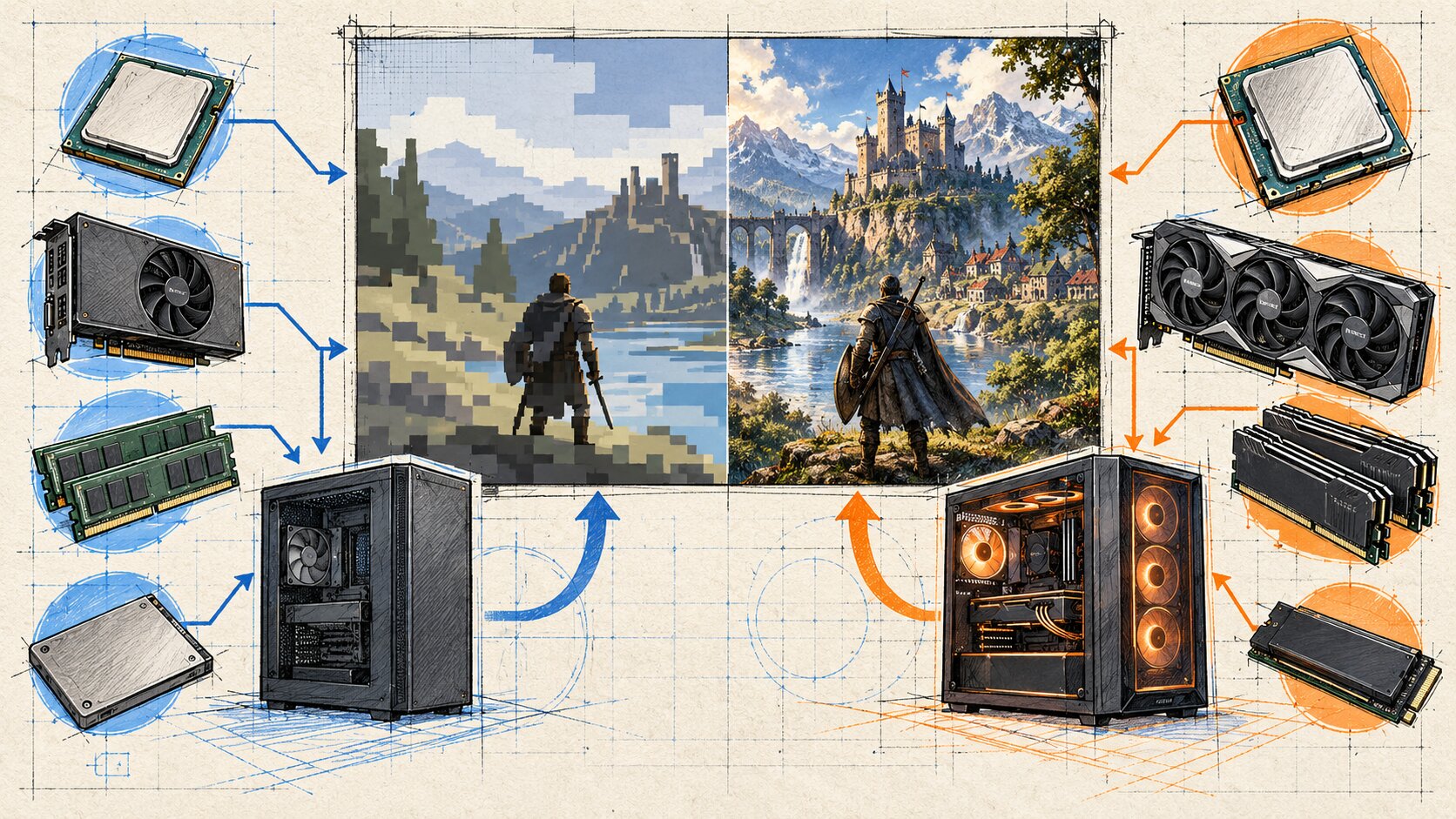
What Minimum and Recommended Really Mean
Most PC game storefronts include system requirements supplied by the developer or publisher.
These specifications typically describe the hardware and software needed to run the game.
Minimum Requirements
Minimum requirements identify the baseline configuration the developer considers necessary or supported for the game.
They may include a processor, graphics card, memory capacity, operating system, and storage requirement.
However, developers do not all use the same performance targets when defining minimum specifications.
One developer might associate its minimum configuration with reduced graphics settings.
Another might provide no explicit frame-rate or resolution target.
Meeting minimum requirements does not automatically guarantee smooth gameplay.
Steam's performance guidance explicitly notes that satisfying a game's system requirements does not mean players will necessarily achieve high FPS or strong performance.
Recommended Requirements
Recommended requirements generally describe a more capable configuration intended to provide a better experience.
These specifications may support higher graphics settings, more stable performance, or a resolution target established by the developer.
However, the word "recommended" is not a universal certification.
A recommended configuration does not automatically guarantee:
- Maximum graphics settings.
- 60 FPS or higher.
- 1440p or 4K gaming.
- Completely consistent frame pacing.
- Optimal performance in every scene.
Unless the developer provides a specific performance target, avoid assigning one.
Minimum vs. Recommended at a Glance
| Category | Minimum | Recommended |
|---|---|---|
| Purpose | Baseline supported configuration | More capable suggested configuration |
| Graphics quality | May require compromises | May allow higher settings |
| Frame rate | Not universally defined | Not universally defined |
| Stability | Depends on hardware and software | Still depends on configuration |
| Buying confidence | Requires closer evaluation | Generally more reassuring |
| Performance guarantee | No | No |
The most useful interpretation is that minimum specifications describe a lower compatibility threshold, while recommended specifications provide a stronger starting point.
Why Meeting Minimum Requirements Isn't Enough
A PC game depends on several components working together.
Even when individual specifications appear sufficient, overall performance can vary.
Frame Rates Can Fluctuate
A game might run comfortably in a quiet environment but struggle during complex battles or crowded scenes.
Minimum specifications may not describe these variations.
Average FPS also doesn't reveal every moment of stuttering or inconsistent frame delivery.
Cooling and Power Matter
Two computers with similar hardware names may behave differently.
A desktop may sustain higher power consumption than a thin laptop using a related processor.
Cooling systems, thermal limits, and power settings can influence sustained gaming performance.
Game Versions Change
A game's requirements and performance characteristics may change after updates.
New effects, expanded environments, or engine modifications can introduce different workloads.
An older compatibility video may no longer accurately represent the current game.
Background Applications Consume Resources
Web browsers, recording software, and other applications can use processor time and memory.
Closing unnecessary applications may help a resource-constrained system.
However, freeing memory cannot replace unsupported graphics features or insufficient processing capability.
Understanding the Five Main Requirements
Before comparing numbers, understand what each specification measures.
1. Processor: CPU
The central processing unit handles tasks such as gameplay logic, simulation, and many calculations.
System requirements may identify specific Intel or AMD processors.
A common mistake is comparing only clock speed.
A processor running at a higher GHz value isn't automatically faster than every processor with a lower clock speed.
Processor architecture, generation, core count, cache, and workload characteristics matter.
What to check: Identify your exact CPU model and compare it with the listed requirement using trustworthy, game-relevant information.
2. Graphics Processor: GPU
The graphics processor handles much of the work required to render game visuals.
The developer may specify an NVIDIA GeForce, AMD Radeon, or another graphics processor.
A graphics card with a larger number in its product name is not automatically better than every model with a smaller number.
Generations and product tiers vary.
Also, a dedicated graphics card and an integrated graphics processor may use memory differently.
What to check: Compare actual GPU models, supported graphics features, video-memory expectations, and any stated performance targets.
3. System Memory: RAM
RAM holds data actively used by the operating system and applications.
Games may require minimum capacities such as 8 GB, 12 GB, or 16 GB.
These are examples, not universal current gaming standards.
A PC with insufficient available RAM may encounter significant performance problems.
However, having more memory than required doesn't guarantee a faster frame rate.
Memory bandwidth and configuration can matter, especially for integrated graphics.
What to check: Confirm installed RAM, usable memory, and whether other applications are consuming substantial resources.
4. Storage
Store pages usually list the amount of space needed to install a game.
A game requiring 40 GB of storage doesn't necessarily mean 40 GB will always be sufficient for updates and temporary files.
Some games also specify a solid-state drive.
An SSD can improve certain loading and data-access scenarios compared with a traditional hard drive.
But an SSD doesn't substitute for insufficient GPU performance.
What to check: Verify storage capacity, the required drive type, and some reasonable free-space margin.
5. Operating System and Graphics APIs
Games can require a particular Windows version or another supported operating system.
Some also require specific DirectX, Vulkan, or other graphics capabilities.
This is a critical compatibility issue.
A computer can have enough RAM and a reasonably fast processor while lacking a graphics feature required to launch the game.
What to check: Confirm operating-system support, required API functionality, and suitable graphics drivers.
How to Find Your PC Specifications
On Windows, you can locate most of the necessary information without purchasing additional software.
Find Your CPU and RAM
- Open the Start menu.
- Select Settings.
- Open System.
- Select About.
- Record your processor and installed RAM.
The wording and navigation may vary by Windows version.
Find Your Graphics Processor
- Right-click the Start button.
- Select Device Manager.
- Expand Display adapters.
- Record the exact graphics adapter name.
If your computer contains both integrated and dedicated graphics, more than one adapter may appear.
Check Storage Space
- Open Settings.
- Go to System > Storage.
- Review available capacity.
If you intend to install the game on a different drive, verify the available space on that specific drive.
Check Driver Information
You can inspect graphics-driver details through Device Manager or your hardware manufacturer's supported utility.
Use official driver sources when updating software.
Avoid unfamiliar driver-download websites promising automatic gaming performance improvements.
How to Compare Your PC With a Game
Use a structured comparison instead of relying on a vague description like "gaming laptop."
Consider this entirely hypothetical example.
| Component | Game minimum | Game recommended | Your PC |
|---|---|---|---|
| CPU | Processor A | Processor B | Processor C |
| GPU | Graphics A | Graphics B | Graphics C |
| RAM | 8 GB | 16 GB | 16 GB |
| Storage | 30 GB | 30 GB SSD | 100 GB free on SSD |
| Operating system | Supported OS | Supported OS | Supported OS |
The names represent different hypothetical products. Their relative performance is not implied by the letters.
Step 1: Check Hard Compatibility Requirements
Start with the operating system, mandatory graphics features, and other requirements that can prevent the game from functioning.
If your computer lacks a required feature, having extra RAM will not correct that problem.
Step 2: Evaluate CPU and GPU Capability
These comparisons require more than checking whether both devices belong to the same brand.
Use credible specifications or relevant performance tests where available.
Laptop and desktop versions can differ substantially.
Step 3: Verify Memory and Storage
Check installed RAM and available disk capacity.
Confirm whether the developer specifically requires an SSD.
Step 4: Identify Your Weakest Component
Suppose your CPU and RAM comfortably meet recommended requirements, but your GPU falls below minimum.
Your computer should not be classified as meeting the minimum configuration.
Meeting four requirements out of five does not automatically compensate for failing the fifth.
Step 5: Investigate Before Purchasing
Look for a compatible official demo or trustworthy performance evidence involving similar hardware.
Check the game version, resolution, graphics settings, and system configuration.
Do not interpret an isolated benchmark as a guarantee.
What If Your PC Falls Between Minimum and Recommended?
This is a common situation.
Your processor might meet recommended requirements while your graphics processor only meets minimum.
Or your GPU may be capable, but your RAM is below the recommended amount.
What You Can Reasonably Expect
A system between minimum and recommended may be able to run the game with some compromises.
These could include reduced resolution, lower graphics settings, or less consistent performance.
However, the outcome depends on the game and the component limiting performance.
Lower Settings May Help
Depending on the game, useful adjustments may include:
- Lower rendering resolution.
- Reduced shadows.
- Reduced reflections.
- Shorter draw distance.
- Lower environmental effects.
- Compatible resolution scaling.
These adjustments primarily address particular rendering workloads.
They cannot fix every CPU limitation, memory shortage, or unsupported graphics feature.
A Demo Is Valuable
If the developer offers an official demo, use it to assess basic compatibility and responsiveness.
Check how the game behaves during demanding scenes when possible.
Remember that a demo may not represent the complete release.
Special Considerations for Integrated Graphics
Integrated graphics deserve separate attention because they frequently share system memory.
Some integrated graphics processors can handle a wide selection of games, but their capabilities vary greatly.
Shared Memory
Unlike many dedicated GPUs with their own video memory, integrated graphics often use system RAM.
This can make memory capacity and bandwidth important.
Intel's graphics support guidance identifies dual-channel memory as a factor that can improve supported integrated-graphics configurations.
Don't Assume Equivalence
A store page listing a dedicated graphics card as its minimum requirement does not establish that every modern integrated GPU is an acceptable alternative.
Similarly, Intel UHD, Intel Iris Xe, and newer integrated graphics designs should not be treated as equivalent.
Compare exact hardware models.
Avoid Visual Assumptions
A pixel-art game isn't necessarily easy to run.
A simple-looking indie title may use demanding shaders, lighting, or simulation systems.
Check the actual specifications rather than relying on artwork.
Common System Requirement Mistakes
Mistake 1: Minimum Means Smooth Gameplay
Minimum requirements generally establish a lower hardware threshold, not a guaranteed performance experience.
Better approach: Look for developer-stated resolution, graphics settings, and frame-rate targets.
Mistake 2: Recommended Means Maximum Settings
Recommended requirements are not universally equivalent to Ultra settings or 60 FPS.
Better approach: Check whether the developer explains the expected experience.
Mistake 3: Comparing CPU Clock Speeds Alone
A higher GHz figure doesn't establish superior overall gaming performance.
Better approach: Compare processor models and architectures.
Mistake 4: Comparing GPU Memory Alone
Two graphics cards with the same VRAM capacity may perform very differently.
Better approach: Evaluate complete GPU capabilities.
Mistake 5: Ignoring Laptop Power Limits
A laptop's hardware may operate under different thermal and power constraints than a desktop equivalent.
Better approach: Seek evidence relevant to the actual device.
Mistake 6: Assuming Old Games Always Work
Older games may have compatibility issues involving modern operating systems, drivers, or graphics interfaces.
Better approach: Check supported platforms and current compatibility information.
Mistake 7: Trusting a Generic Compatibility Score
A simplified score can overlook mandatory features or differences between hardware generations.
Better approach: Use the game's actual requirements as the baseline.
What to Do Before Buying
There are several practical options if your computer falls short of recommended specifications.
Option A: Try an Official Demo
This is often the most direct way to evaluate gameplay on your system.
The demo must be compatible with your operating system and hardware.
Option B: Investigate Similar Hardware
Look for relevant reports involving the same CPU or GPU.
Prefer evidence that includes the game's version, graphics settings, and resolution.
Option C: Choose Another Game
A game that comfortably matches your hardware may offer a more enjoyable experience than one requiring substantial compromises.
This is particularly useful when exploring indie and retro-inspired titles.
Option D: Consider an Upgrade
Hardware upgrades can help when they address an identified bottleneck.
However, upgrading is not always possible or economical, especially with laptops.
Identify the limitation before spending money.
Option E: Wait for Better Information
If an upcoming game's requirements are incomplete, waiting may be the best choice.
A purchase decision can become easier after the developer releases specifications, a demo, or additional compatibility information.
The Final Compatibility Checklist
Before purchasing a PC game:
- Identify your exact CPU model.
- Identify your exact GPU model.
- Check installed RAM.
- Confirm available storage.
- Verify operating-system support.
- Check required graphics APIs.
- Compare minimum and recommended specifications separately.
- Investigate any component below minimum.
- Review recent, relevant performance evidence.
- Try an official demo when available.
Minimum requirements tell you where the developer's supported hardware baseline begins.
Recommended requirements provide a more capable reference point.
Neither replaces evaluating your actual computer.
The best buying decision comes from understanding the requirements, recognizing uncertainty, and choosing games that match the hardware you already own.
Frequently Asked Questions
Can I play a game if my PC only meets the minimum requirements?
Possibly. Meeting minimum specifications indicates the configuration is within the developer's stated baseline, but it doesn't guarantee particular frame rates or graphics settings.
Does meeting recommended requirements guarantee 60 FPS?
No. Only rely on a specific frame-rate target when the developer provides one and explains the conditions.
What happens if my GPU is below minimum but my CPU exceeds recommended?
Your computer still falls below the stated minimum configuration for that component. A faster CPU cannot necessarily compensate for missing GPU capability or required graphics features.
Is 16 GB of RAM enough for every PC game?
No. Memory requirements vary, and some games need more or less. Check the individual game's specifications.
Does installing a game on an SSD improve FPS?
An SSD may improve loading or data streaming in some games, but it doesn't automatically increase graphics-processing capability or frame rates.
Are system requirements more important than gameplay videos?
Both provide different information. Requirements establish a technical baseline, while relevant gameplay evidence can help illustrate actual performance. Neither guarantees an identical experience on your computer.
Official Hardware Resources
- Steam Performance Troubleshooting - Why meeting system requirements doesn't guarantee high frame rates.
- Intel Gaming Performance Guidance - CPU, driver, memory, and system-performance troubleshooting.
- Intel Graphics Performance Support - Integrated graphics and memory configuration considerations.
- Steam Operating-System Compatibility - How to check supported operating systems and hardware requirements.
By: Alex Brown
Last updated: October 18, 2026
Hardware Compatibility Note
Published minimum and recommended specifications are provided by game developers or publishers. Interpretation and performance targets may vary between titles. Hardware comparisons should account for complete system configurations, current drivers, game versions, and any explicitly stated performance conditions. No original benchmark testing is represented in this article.
0 comments:
Post a Comment