Don't Guess From the Graphics
You've discovered a promising PC game.
The screenshots look fantastic, the gameplay sounds interesting, and the price seems reasonable.
There's one question left: Can your computer actually run it?
For players with modern gaming desktops, the answer might be straightforward.
For everyone using an older PC, affordable laptop, mini PC, or computer with integrated graphics, things can get complicated.
Steam lists minimum and recommended hardware requirements, but those specifications often contain unfamiliar processor names, graphics cards, and technical abbreviations.
And a game looking simple doesn't necessarily make it easy to run.
A colorful pixel-art game might demand a surprisingly powerful processor. Meanwhile, a carefully optimized 3D title may work on hardware that initially looks unsuitable.
Fortunately, you don't need to become a computer technician to make an informed decision.
You only need to understand what your computer contains, what the game requires, and where compatibility becomes uncertain.
The Five-Minute Compatibility Check
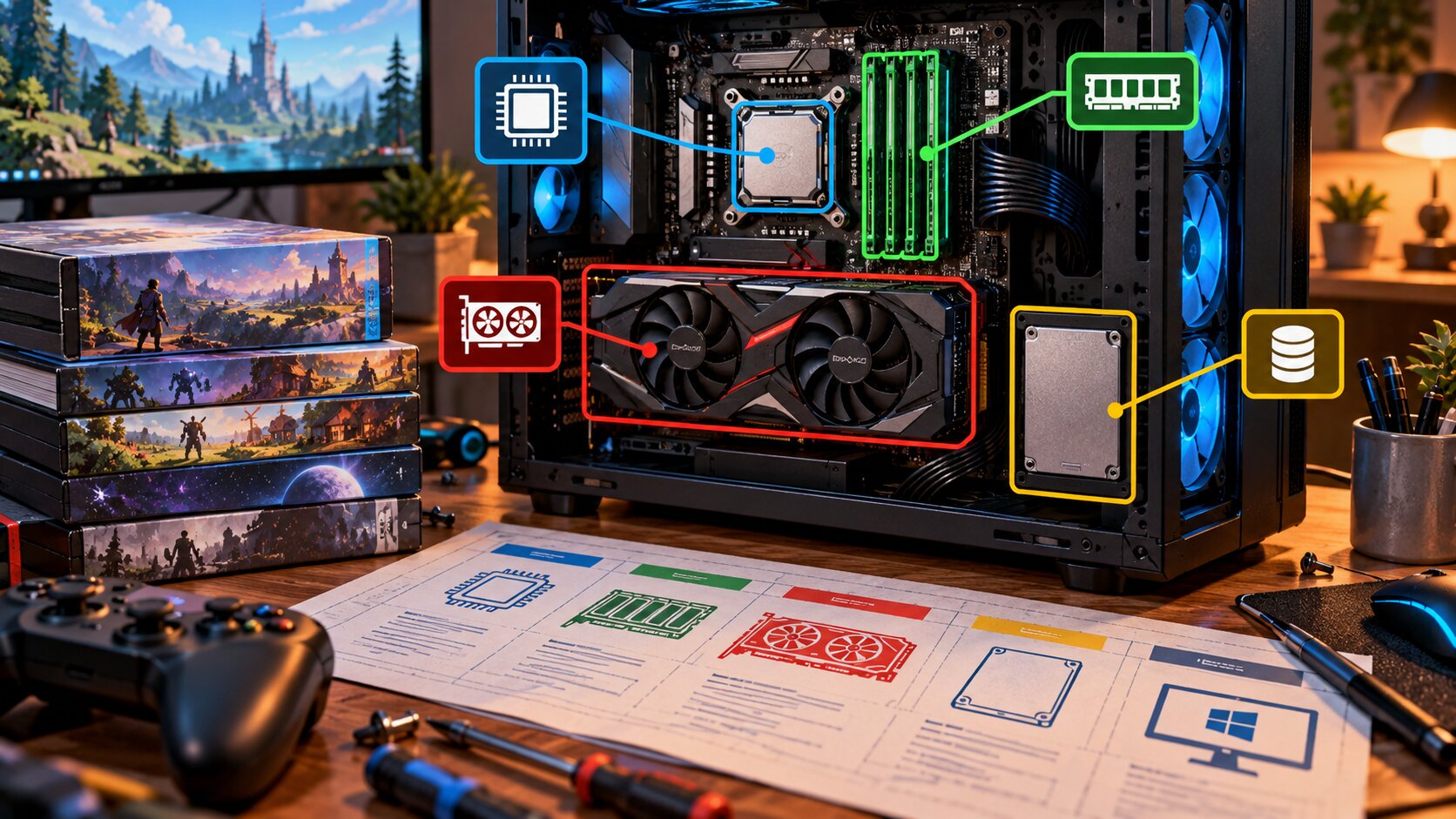
Before buying a PC game, compare five essential details.
| Component | What to Compare | Why It Matters |
|---|---|---|
| CPU | Processor model and generation | Handles game logic, calculations, and simulation |
| GPU | Graphics model and features | Renders the game's visuals |
| RAM | Installed system memory | Supports active game and system data |
| Storage | Free space and drive type | Determines installation capacity and loading behavior |
| Operating system/API | Windows version, DirectX, Vulkan, OpenGL | Determines software and graphics compatibility |
If your computer meets every minimum requirement, that is encouraging.
But meeting minimum requirements doesn't guarantee smooth performance.
Steam cautions that systems near or below a game's requirements can experience launch or gameplay problems.
Treat specifications as a first filter, not a performance promise.
Find Your Computer's Specifications
You can inspect most essential hardware information using tools already included with Windows.
Step 1: Find Your Processor and RAM
On Windows 11:
- Open Settings.
- Select System.
- Choose About.
- Find Device specifications.
- Record your processor and installed RAM.
For example, you might discover:
- Processor: Intel Core i5-8250U
- Installed RAM: 8 GB
- System type: 64-bit
These details are examples, not specifications of a tested computer.
Write down the complete processor name.
The exact model is more useful than simply knowing your computer has an Intel Core i5.
Step 2: Identify Your Graphics Processor
Press Ctrl + Shift + Esc to open Task Manager.
Select the Performance tab.
Look for GPU entries.
A typical computer may display:
- Intel UHD Graphics
- Intel Iris Xe Graphics
- AMD Radeon Graphics
- NVIDIA GeForce GTX or RTX graphics
Some computers contain two GPUs.
For example, a laptop might include integrated Intel graphics alongside a dedicated NVIDIA graphics processor.
If your computer has two GPUs, the game may need to be configured to use the more capable one.
Record the complete GPU model whenever possible.
Step 3: Check Available Storage
Open Settings → System → Storage.
Check how much free space remains on the drive where you intend to install the game.
If the game requires 30 GB, having exactly 30 GB available isn't ideal.
Leave additional space for updates, temporary files, saved data, and normal operating-system activity.
Step 4: Check Windows Compatibility
Under Settings → System → About, find the Windows edition and version.
Confirm that the game's listed operating-system requirements match your installation.
An older operating system may lack features required by newer games.
Also remember that Microsoft ended standard support for Windows 10 on October 14, 2025.
A computer running Windows 10 may still run compatible games, but operating-system security and ongoing support are separate considerations.
Minimum vs. Recommended Requirements
This is one of the most important distinctions on a PC game store page.
Minimum Requirements
Minimum specifications describe the hardware baseline identified by the developer.
They may indicate that the game can launch or operate at reduced settings.
However, they don't necessarily promise:
- 60 FPS.
- High-resolution graphics.
- Consistent frame pacing.
- Maximum visual settings.
- Smooth gameplay during demanding scenes.
A game might technically run but remain unpleasant to play.
Recommended Requirements
Recommended specifications describe a more capable configuration.
They generally indicate hardware better suited to the intended experience.
But developers don't always specify exactly what recommended means.
One developer might target 1080p at 60 FPS.
Another might define recommended hardware around 30 FPS at higher visual settings.
If the listing doesn't include a frame-rate or resolution target, don't invent one.
Why the Difference Matters
Imagine a game with these hypothetical specifications.
| Component | Minimum | Recommended |
|---|---|---|
| CPU | Core i5-6500 | Core i5-10400 |
| RAM | 8 GB | 16 GB |
| GPU | GTX 1050 Ti | GTX 1660 Super |
| Storage | 20 GB | 20 GB SSD |
A computer meeting only the minimum requirements might provide a playable experience at reduced settings.
But its performance may vary with game complexity, background applications, and the particular scenes being rendered.
Recommended requirements offer a more comfortable reference point, not an absolute guarantee.
Understanding CPU and GPU Names
Hardware names are confusing partly because bigger numbers don't always mean better performance.
Your CPU: The Processor
The CPU handles calculations associated with gameplay.
Examples include:
- Character behavior.
- Physics.
- World simulation.
- Background systems.
- Certain game logic.
- Coordination of rendering work.
A computer with a powerful graphics card can still struggle if its processor cannot keep up.
This is particularly important in strategy games, city builders, and simulations involving many independent activities.
Don't Compare Processors by Clock Speed Alone
Suppose one CPU operates at 3.5 GHz and another at 2.8 GHz.
That doesn't establish which is faster.
Processor generation, architecture, core count, cache, power limits, and workload all matter.
A newer processor running at a lower frequency may outperform an older model operating at a higher frequency.
Instead of comparing one number, investigate the exact CPU models.
Your GPU: The Graphics Processor
The GPU is responsible for most of the graphics rendering.
Dedicated graphics cards have their own graphics-processing hardware and typically have dedicated video memory.
Integrated graphics are built into the processor or system-on-chip and usually share system memory.
Both approaches can run games, but their capabilities vary widely.
Integrated Graphics Aren't All Equal
Consider these examples:
- Intel UHD 620.
- Intel Iris Xe.
- AMD Radeon 680M.
- AMD Radeon 780M.
These are different graphics solutions with different capabilities.
A game compatible with one may not perform acceptably on another.
Likewise, having a dedicated GPU doesn't automatically mean your computer is powerful.
An old dedicated card may be less capable than a modern integrated solution.
The model matters more than the category.
Video Memory Isn't the Whole Story
A graphics card having 8 GB VRAM doesn't automatically make it faster than one with 6 GB.
Memory capacity is only one factor.
GPU architecture, processing resources, memory bandwidth, supported features, and power limits also matter.
Similarly, a laptop with 16 GB of shared system memory doesn't necessarily have graphics performance equivalent to a dedicated card with 8 GB VRAM.
Avoid comparisons based solely on memory size.
RAM, Storage, and Graphics APIs
System RAM
RAM temporarily holds data used by the operating system and running applications.
If a game requires 8 GB RAM and your PC has exactly 8 GB installed, Windows and background applications will still consume part of that memory.
That can increase the risk of slowdowns and memory pressure.
Having more RAM is useful when capacity is the limitation.
However, adding RAM won't solve every performance problem.
If your GPU is substantially below the minimum requirement, upgrading RAM alone may accomplish little.
SSD vs. Hard Drive
An SSD typically provides faster access to game data than a traditional hard drive.
That can improve installation, loading, and asset-streaming behavior.
Some games explicitly recommend or require an SSD.
But an SSD isn't a substitute for a capable processor or GPU.
A slow graphics card won't suddenly deliver high frame rates because the game is installed on faster storage.
DirectX, Vulkan, and OpenGL
These graphics APIs allow games to communicate with graphics hardware.
A game may require DirectX 12, Vulkan, or a particular OpenGL version.
Your system needs compatible hardware, drivers, and software support.
Simply having a recent DirectX runtime installed doesn't necessarily mean every requested GPU feature is supported.
A graphics card may fail a game's compatibility check even when other specifications appear sufficient.
For older PCs, this can be especially important.
Steam specifically advises checking graphics and shader requirements, not only the DirectX version.
A Realistic Compatibility Example
Consider a hypothetical laptop with the following specifications:
| Component | Laptop |
|---|---|
| CPU | Intel Core i5-8250U |
| RAM | 8 GB |
| GPU | Intel UHD 620 |
| Storage | 256 GB SSD |
| OS | Windows 11 |
Now imagine you're considering two games.
Game A: Lightweight Puzzle Adventure
Published minimum requirements:
- Dual-core processor.
- 4 GB RAM.
- Intel UHD 620 or equivalent.
- 2 GB available storage.
- Windows 10 or newer.
This game appears reasonably compatible on paper.
The laptop meets the stated graphics requirement and has sufficient memory and storage capacity.
That still doesn't establish an exact frame rate.
But Game A is a sensible candidate to investigate further.
Game B: Demanding 3D Action Game
Published minimum requirements:
- Core i5-10400.
- 16 GB RAM.
- GeForce GTX 1660.
- 40 GB SSD.
- Windows 10 or newer.
This configuration creates several concerns.
The laptop has less RAM than required.
Its integrated graphics are substantially below the specified dedicated GPU class.
Its processor is also older and less capable than the listed baseline for many workloads.
Conclusion: Game B is a poor purchasing candidate for this laptop without strong contrary compatibility evidence.
Lowering graphics settings might help certain borderline configurations, but it cannot guarantee that substantially inadequate hardware will become suitable.
These are illustrative games, not benchmarked products.
Common Mistakes to Avoid
Mistake 1: Assuming Every Core i7 Beats Every Core i5
Processor families span many generations.
An old i7 may perform worse than a newer i5 in relevant workloads.
Compare exact models.
Mistake 2: Assuming Pixel Art Means Low Requirements
Visual appearance doesn't reveal how demanding the underlying game engine or simulation may be.
Check the specifications regardless of art style.
Mistake 3: Ignoring Laptop Power Limits
Laptop processors and GPUs can operate under different power and thermal constraints.
Two devices with similar hardware names may deliver different sustained performance.
Mistake 4: Treating Minimum Requirements as a Guarantee
Minimum hardware is a screening threshold.
It doesn't prove that performance will match your preferences.
Mistake 5: Downloading Random Compatibility Tools
Be cautious with third-party websites demanding software installation or extensive permissions simply to evaluate your computer.
You can identify your hardware using built-in Windows tools and compare specifications manually.
Avoid downloading unfamiliar executables when ordinary research provides the necessary information.
Mistake 6: Forgetting Game Updates
Game requirements can change as developers add content, revise graphics systems, or introduce new features.
Check the latest official store listing rather than relying exclusively on an old review.
Your Before-Buying Checklist
Use this checklist whenever a PC game catches your attention.
- Record your exact CPU model.
- Identify your actual GPU.
- Check installed RAM.
- Confirm available storage.
- Verify your Windows version.
- Read both minimum and recommended requirements.
- Check required graphics APIs and features.
- Investigate comparable hardware performance.
- Try a legitimate demo when available.
- Review current refund rules before purchasing.
The Three-Category Decision
Likely compatible: Your computer meets or exceeds the listed hardware baseline and supports required features. Performance still requires confirmation.
Uncertain: Some specifications are close to the minimum, incomplete, or difficult to compare. Research further.
Unlikely compatible: Your system clearly falls below one or more essential requirements. Avoid purchasing until you have convincing compatibility evidence.
This approach is more reliable than guessing from screenshots, graphics style, or the age of your computer.
A great game is only a good purchase when you can enjoy playing it.
The objective isn't to own the most powerful computer.
It's to make informed choices about the one you already have.
Frequently Asked Questions
Can I run a game if my GPU is below the minimum?
Possibly in some cases, but performance and compatibility aren't guaranteed. Certain missing graphics features can prevent the game from launching.
Does 16 GB RAM guarantee smooth gaming?
No. Performance also depends on CPU, GPU, software requirements, and game optimization.
Is an SSD necessary?
Some games require an SSD, while others only recommend one. Follow the requirements of the specific title.
Can I trust online benchmark comparisons?
Use reputable, clearly documented comparisons involving the same or closely related hardware and relevant games. Avoid treating a single score as proof of compatibility.
Useful Official Resources
- Microsoft: Find Information About Your Windows Device, Identify Windows version, processor, RAM, and storage.
- Steam: Checking Game Platform Compatibility, Find supported operating systems and requirements.
By: Rex Iriarte Contributor: Retro Nation Published: October 18, 2026
Disclosure: This educational guide relies on published technical documentation. Hypothetical hardware configurations and game examples are not original benchmarks.
References
- Microsoft Support, Windows device specifications and system configuration tools. https://support.microsoft.com/en-us/windows/experience/find-information-about-your-windows-device
- Steam Support, system requirements and platform compatibility. https://support.microsoft.com/en-us/windows/experience/find-information-about-your-windows-device
- Steam Support, DirectX and Pixel Shader Requirements for Games on Steam. https://support.microsoft.com/en-us/windows/experience/find-information-about-your-windows-device
0 comments:
Post a Comment